Microsoft’s AI ecosystem is growing fast and becoming more confusing by the minute.
We now have Microsoft 365 Copilot, Copilot Studio agents, Copilot Cowork, Microsoft Scout, and a growing set of agentic capabilities across the stack. They all sound related, and in some cases they overlap. But they aren’t interchangeable.
So, let’s try to un-muddy the waters a bit…
The quick decision rule
Here’s the simplest way I’d explain the difference:
| Tool | Use it when… |
|---|---|
| Microsoft Scout | You need local machine access: files on your device, shell or PowerShell, browser automation, GitHub, Microsoft 365, MCP servers, automations, or scheduled checks. |
| Copilot Cowork | You want secure cloud execution: delegate an outcome, let Cowork plan and progress the work across Microsoft 365, then approve recommended actions. |
| Microsoft 365 Copilot | You want prompt-and-response assistance inside Microsoft 365 apps, Copilot Chat, and out-of-the-box agents like Researcher, Analyst, and Facilitator. |
| Copilot Studio agent | You need a governed, reusable agent for a repeatable business process that many people can use. |
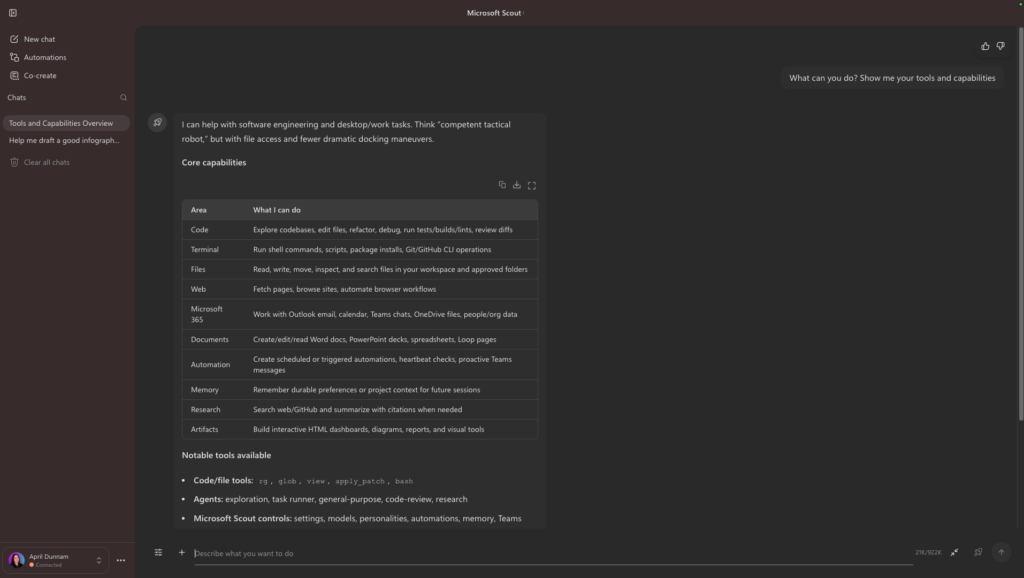
Microsoft Scout: when the machine matters
Microsoft Scout is the newest kid on the block. It’s the one I reach for when the task needs access to what is happening on my machine.
That might mean finding files in local folders, working with downloaded documents, running PowerShell-style commands, using browser automation, interacting with GitHub, or combining local context with Microsoft 365 data.
Scout is less about “answer this question” and more about “operate across my environment.”
A few examples:
- Find the latest version of a deck somewhere on my machine, compare it to the exported PDF, fix the source file, and save the final outputs locally.
- Inspect a repo, run tests, make code changes, and prepare a PR-ready update.
- Open a browser, navigate a web app, gather screenshots, and compile a report.
- Run a scheduled heartbeat check every morning to review calendar, priority emails, and GitHub notifications.
That local execution layer is the big distinction.
Scout can also connect beyond Microsoft 365 and GitHub through MCP servers, which means you can extend it to other services and tools when authorized.
Copilot Cowork: secure delegated cloud execution
Copilot Cowork is different.
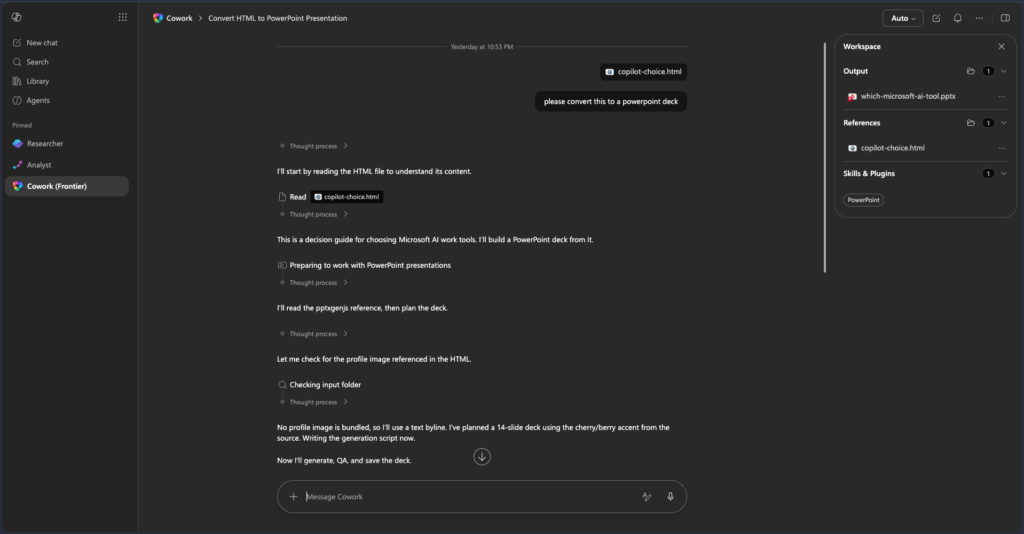
The way I’d describe Cowork is secure delegated cloud execution.
You describe the outcome you want, and Cowork grounds the work in your Microsoft 365 context (emails, meetings, messages, files, and data). It creates a plan, works in the background, checks in at milestones, asks for clarification when needed, and lets you approve recommended actions before they’re applied.
That makes Cowork more than prompt-and-response chat. It is about handing off work while staying in control.
Examples include:
- Cleaning up your calendar by reviewing conflicts, proposing focus time, and applying changes after approval.
- Preparing for a customer meeting by creating a briefing document, supporting analysis, deck, and follow-up draft.
- Researching a company using web and work sources, then producing a memo, summary, and workbook.
- Creating a launch plan with competitive intelligence, positioning, assets, milestones, and owners.
Cowork can also be extended with skills, plugins, and MCP servers to connect to approved first-party and third-party services.
The boundary I’d keep in mind: Cowork is cloud execution. It is not for directly operating on your local machine, running local scripts, or automating a browser session on your desktop.
That is where Scout fits better.
Microsoft 365 Copilot: prompt-and-response assistance plus prebuilt agents
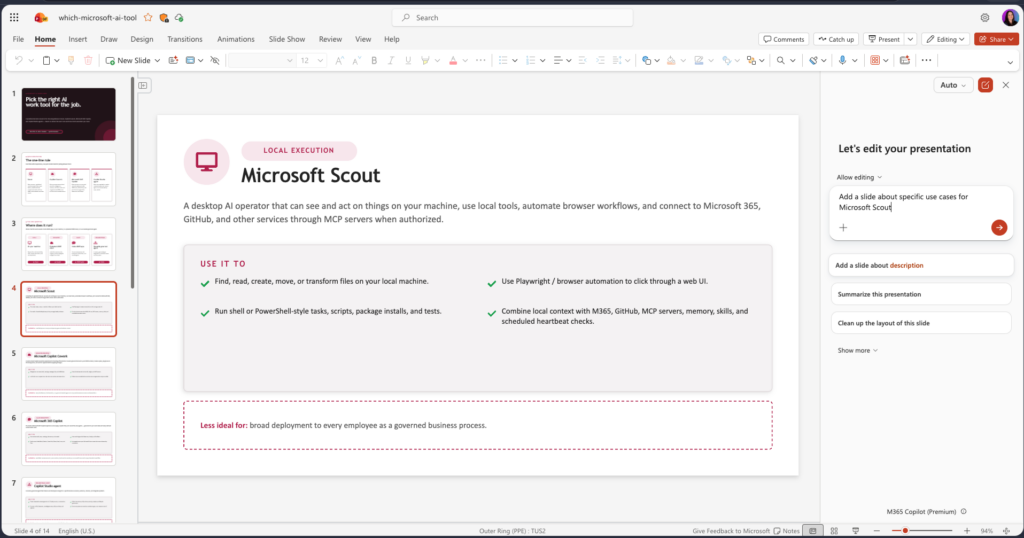
Microsoft 365 Copilot is still the everyday starting point for a lot of knowledge work.
It helps inside Outlook, Teams, Word, PowerPoint, Excel, Loop, and Copilot Chat. It is grounded in your Microsoft Graph context and is great for summarizing, drafting, analyzing, and answering questions.
It also includes out-of-the-box agents like Researcher and Analyst, which makes it more powerful than just “chat inside Office.”
But the key distinction is that Microsoft 365 Copilot is primarily a prompt-and-response experience. You ask, it helps. You iterate. You stay in the flow of the app.
That’s different from Cowork, where you’re handing off an outcome for background execution with checkpoints and approvals.
Use Microsoft 365 Copilot when you want to:
- Summarize an email thread.
- Draft a response in Outlook.
- Recap a Teams meeting.
- Create a first draft in Word or PowerPoint.
- Use Researcher to create a sourced brief.
- Use Analyst to reason over data.
- Use Facilitator to help structure meetings and follow-up.
Copilot Studio agents: governed reusable agents
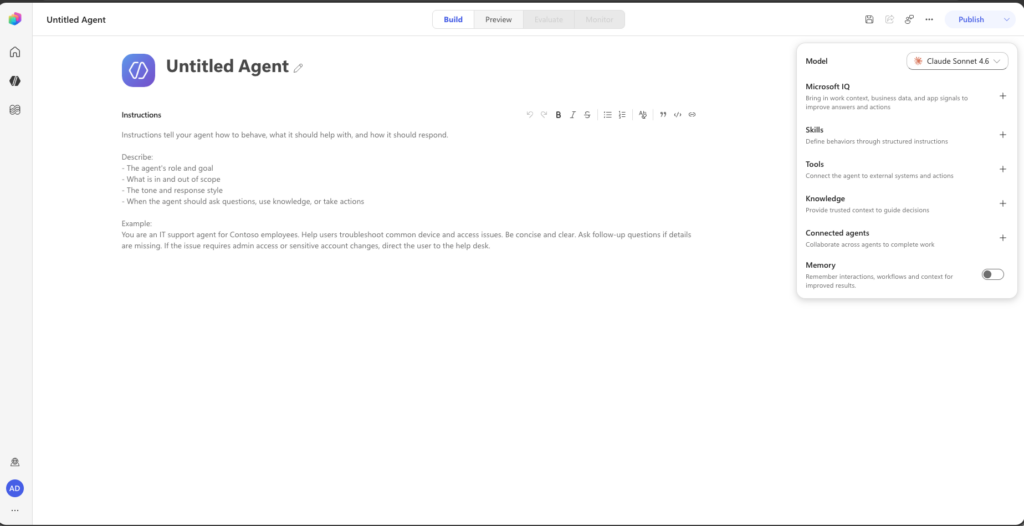
Copilot Studio is where I’d go when the pattern needs to become a reusable agent.
This isn’t just about helping one person complete one task. It is about building an agent that can serve a team, department, or organization.
Copilot Studio agents can include instructions, knowledge, skills, workflows, tools, security, analytics, and lifecycle management. They can be published into Microsoft 365 Copilot and other channels.
Use Copilot Studio when you need something like:
- An HR onboarding agent that answers policy questions and routes requests through workflows.
- An IT support agent that troubleshoots common issues, creates service requests, and escalates when needed.
- A sales enablement agent connected to CRM and product knowledge.
- An operations agent that standardizes a repeatable process across many users.
The key phrase here is repeatable and governed.
If one person needs help now, Microsoft 365 Copilot, Cowork, or Scout may be enough. If many people need the same guided capability, that is a Copilot Studio agent.
Scout vs Cowork: the most important distinction
Scout and Cowork are probably the easiest to confuse because they are both more personal productivity execution-oriented.
Here’s the distinction I’d use:
| Question | Use Scout | Use Cowork |
|---|---|---|
| Does it need access to local files or folders? | Yes | No |
| Does it need shell, PowerShell, scripts, or local tools? | Yes | No |
| Does it need browser automation on my machine? | Yes | No |
| Does it need to run securely in the Microsoft 365 cloud? | Maybe | Yes |
| Does it need plans, checkpoints, and approval before cloud actions? | Maybe | Yes |
| Does it need to keep working from cloud context across devices? | No | Yes |
A simple test:
If the task starts with “look on my machine,” “run this locally,” “open the browser and click through this,” or “watch this from my desktop runtime,” use Scout.
If the task starts with “take this outcome and progress it across my Microsoft 365 work context while I close my laptop and go do something else” use Cowork.
These tools are better together
The best answer is not always one tool.
A real workflow might use several of these together:
- Use Microsoft 365 Copilot to summarize context, ask questions, and shape the first draft.
- Use Researcher or Analyst agents when you need deeper research or data reasoning.
- Use Copilot Cowork when you want to delegate multi-step work in the cloud (create this deck, email it to my boss, block my calendar).
- Use Scout when the work needs your local machine, browser automation, files, scripts, etc.
- Use Copilot Studio when the process should become a reusable governed agent for many people.
Breaking it down even further:
Microsoft 365 Copilot helps you work inside Microsoft 365.
Copilot Cowork helps you delegate cloud-based work.
Microsoft Scout helps you operate across your local machine and connected tools.
Copilot Studio helps you build reusable agents at scale.
Final takeaway
The Microsoft AI stack isn’t just one product anymore. It’s becoming a set of work patterns:
- Assist me
- Execute this locally
- Delegate this in the cloud
- Turn this into a reusable agent
Once you identify the work pattern, the tool choice becomes much easier.
Want the full guide with more practical use cases for each? Get it here: https://aka.ms/copilot-choice
Prefer to watch? Check out my video: