I worked on a project recently where the customer wanted to send an email via Flow to all the members of a given SharePoint Security Group. Normally I would recommend that a distribution list be made and used instead but the client didn’t have the access to create one so I added some logic in Flow to make it happen.
Setting up Variables
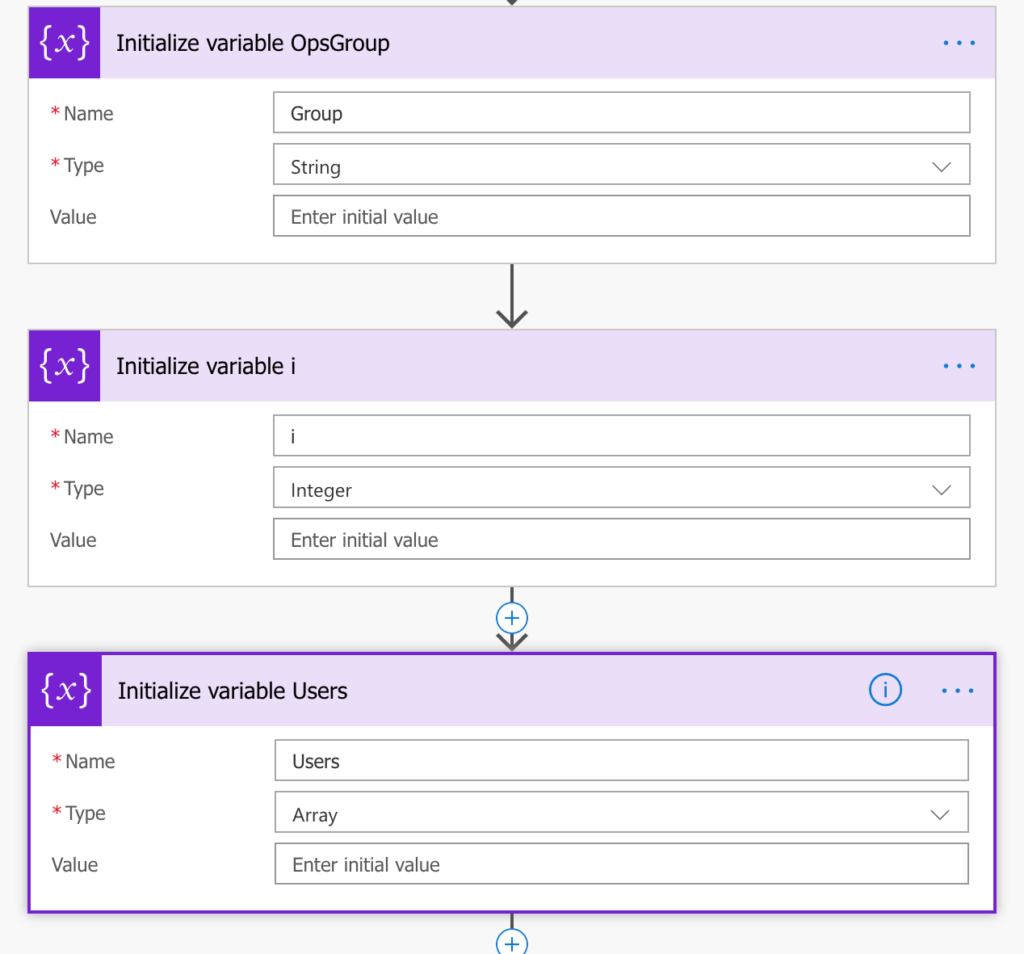
To get the users from a SharePoint Group we first need to initialize three different variables. We need one string variable called “Group” which will hold the email addresses of the Group Members. We’ll need an integer variable called “i” which will serve as a counter as we For Each through the results of the SharePoint Group Member lookup. Lastly, we’ll need an array variable called Users which will contain the array of users from our query. See screenshot below for the configuration:
Getting the SharePoint Group Members
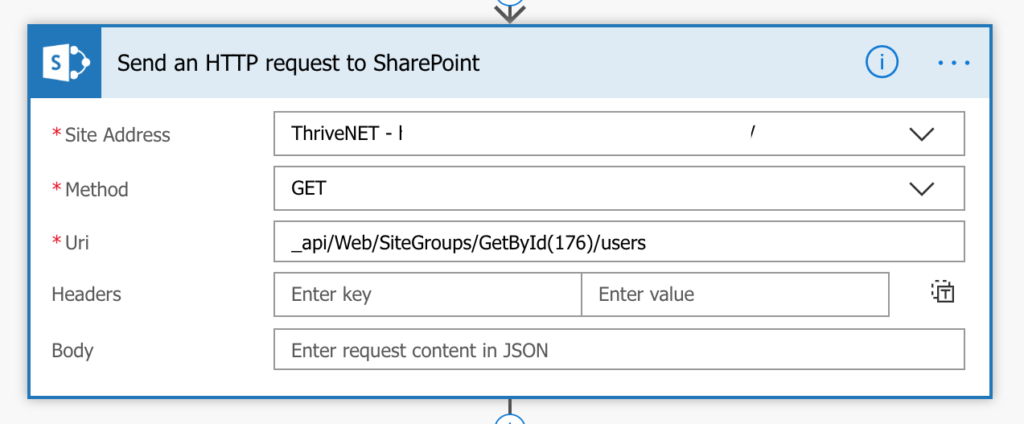
Now that we have our variables configured, we need to call SharePoint and return the members of the Group in question. To do this, we’ll use the “Send an HTTP Request to SharePoint” Action in Flow. You will need to pass in the URL of the site which contains the Group. The Method for this call will be a a GET because we are wanting to call the Rest API and have it get information for us. The URI is the endpoint for the SharePoint Rest API. The endpoint we need to return users from a group is as follows:
_api/Web/SiteGroups/GetByID(<Put In ID of SharePoint Group Here>)/users
Finding the Group ID
You can get the ID of your SharePoint Group by going into the Group and looking in the URL for “MembershipGroupId=”. The number that follows is the Group ID and what you will use in the URI.
Parsing the Results
Now that we have the results of our HTTP request, we need to loop through those results, also called “Parsing” to get them in a format which Flow can use. To do this, we will insert a Parse JSON Action. The Content Property of the Parse JSON action will be the Body of the SharePoint HTTP request.
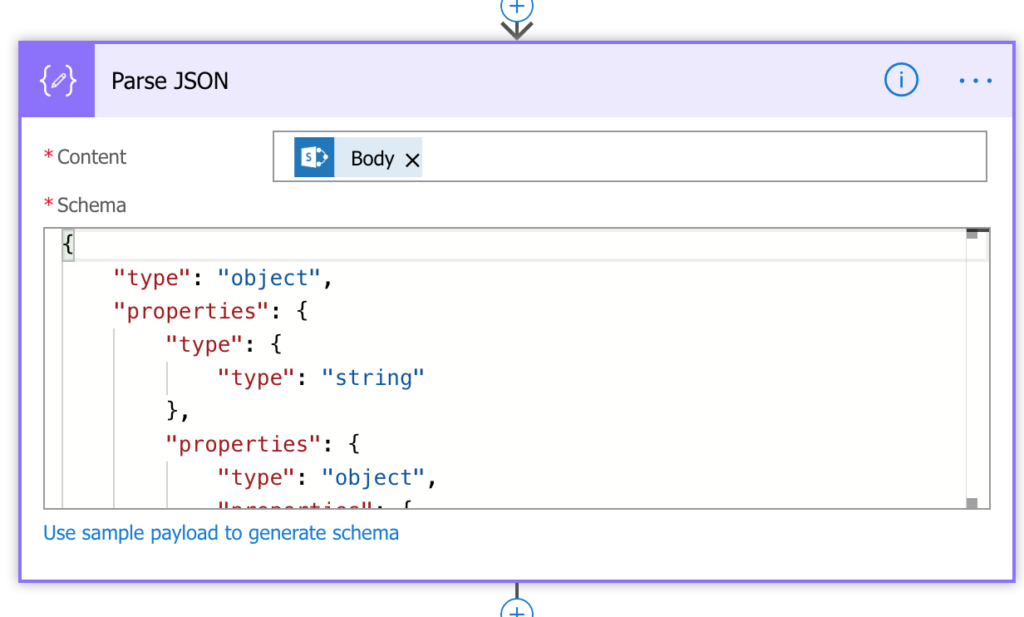
In the Schema box, insert the following JSON object:
{ "type": "object", "properties": { "type": { "type": "string" }, "properties": { "type": "object", "properties": { "d": { "type": "object", "properties": { "type": { "type": "string" }, "properties": { "type": "object", "properties": { "results": { "type": "object", "properties": { "type": { "type": "string" }, "items": { "type": "object", "properties": { "type": { "type": "string" }, "properties": { "type": "object", "properties": { "__metadata": { "type": "object", "properties": { "type": { "type": "string" }, "properties": { "type": "object", "properties": { "id": { "type": "object", "properties": { "type": { "type": "string" } } }, "uri": { "type": "object", "properties": { "type": { "type": "string" } } }, "type": { "type": "object", "properties": { "type": { "type": "string" } } } } } } }, "Alerts": { "type": "object", "properties": { "type": { "type": "string" }, "properties": { "type": "object", "properties": { "__deferred": { "type": "object", "properties": { "type": { "type": "string" }, "properties": { "type": "object", "properties": { "uri": { "type": "object", "properties": { "type": { "type": "string" } } } } } } } } } } }, "Groups": { "type": "object", "properties": { "type": { "type": "string" }, "properties": { "type": "object", "properties": { "__deferred": { "type": "object", "properties": { "type": { "type": "string" }, "properties": { "type": "object", "properties": { "uri": { "type": "object", "properties": { "type": { "type": "string" } } } } } } } } } } }, "Id": { "type": "object", "properties": { "type": { "type": "string" } } }, "IsHiddenInUI": { "type": "object", "properties": { "type": { "type": "string" } } }, "LoginName": { "type": "object", "properties": { "type": { "type": "string" } } }, "Title": { "type": "object", "properties": { "type": { "type": "string" } } }, "PrincipalType": { "type": "object", "properties": { "type": { "type": "string" } } }, "Email": { "type": "object", "properties": { "type": { "type": "string" } } }, "IsEmailAuthenticationGuestUser": { "type": "object", "properties": { "type": { "type": "string" } } }, "IsShareByEmailGuestUser": { "type": "object", "properties": { "type": { "type": "string" } } }, "IsSiteAdmin": { "type": "object", "properties": { "type": { "type": "string" } } }, "UserId": { "type": "object", "properties": { "type": { "type": "string" }, "properties": { "type": "object", "properties": { "__metadata": { "type": "object", "properties": { "type": { "type": "string" }, "properties": { "type": "object", "properties": { "type": { "type": "object", "properties": { "type": { "type": "string" } } } } } } }, "NameId": { "type": "object", "properties": { "type": { "type": "string" } } }, "NameIdIssuer": { "type": "object", "properties": { "type": { "type": "string" } } } } } } } } }, "required": { "type": "array", "items": { "type": "string" } } } } } } } } } } } } }}
Setting the User Object
Now we need to set the Users array variable that will hold the results of our Parse JSON action. Insert a “Set Variable” Action and select the Users variable we defined earlier. We will set the value to the results element of our parse JSON via the expression below:
body(“Parse_JSON”)[“d”][“results”]
Looping through the Users
So we have an Array of all the users in the SharePoint group. Next, we need to add an “Apply to Each” so that we can loop through each result and extract the email address. The Group membership object returns all kinds of information we don’t care about like Name, Department, etc. So we need to loop through and just get the email addresses.
Inside our Apply to each we need to add an “Append to String Variable” Action. We want to write to our “Group” String Variable we initialized in the previous step. The value will be the Email from our Users Array. To get that we need to use the following Expression:
concat(variables(‘Users’)[variables(‘i’)][‘Email’],’;’)
After we set the email, we need to add a “Increment Variable” Action to set our “i” counter in the previous step to 1.
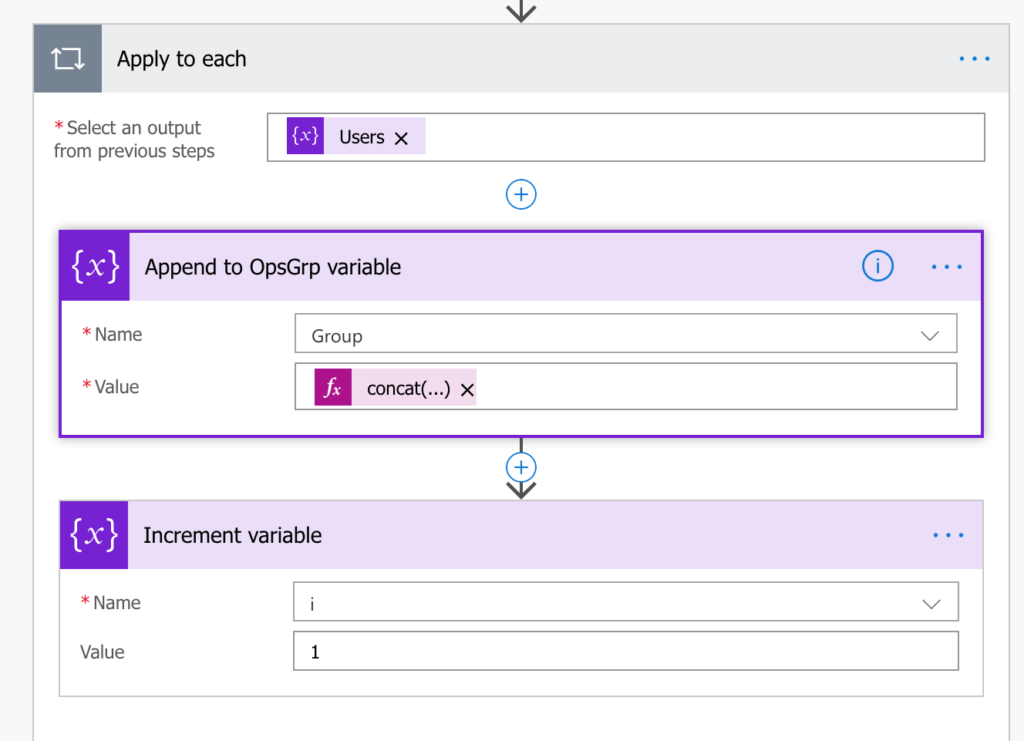
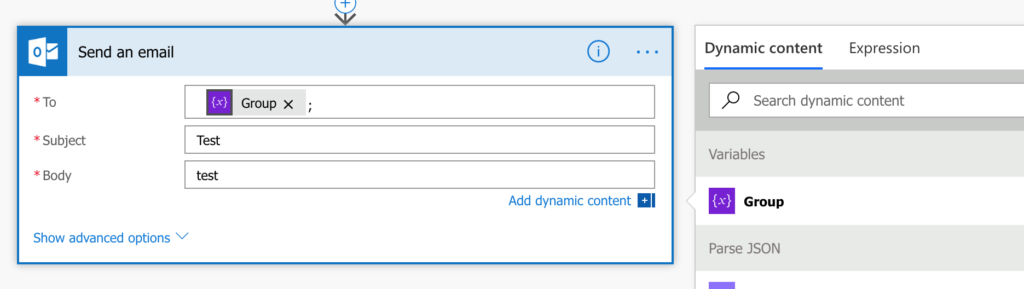
The final step is to insert the Send an Email Action with the “To” field being the Group Variable.
I think some people new to Flow might need to know the construct of the ‘For Each’ action to continue until the variable ‘i’ is equal to the count of results in the array/members of the group. Not sure how that looks without doing it myself, but nice article, thanks!
Nice solution, but I took an easier way out and created a new Group, which then has an associated email address with it. Being short on time I didn’t have time to work on this one as well. A nice side feature is that I’m able to add that secondary group to the original site permissions. The only downside is the additional group/teams/planner/sharepoint site hanging around.
Yes, wouldn’t it be nice if you could just get an O365 Group all by itself OR an email address for a SharePoint group? I’ve been debating myself all day about whether to do just what you did. It’s the confusing baggage that doesn’t know anything about the OTHER SharePoint site that I don’t like.
Hi April,
I’ve had to follow this solution due to a change in my Flow and the expressions above aren’t working for me. Are you able to validate these again please?
Thanks,
Jason.
Hey April,
Mind if you provide me some assistance with the code you provided? I tried all your steps and when I try to run the flow, it displays “BadRequest. The variable ‘Users’ of type ‘Array’ cannot be initialized or updated with value ‘Body(“Parse_JSON”)[“d”][“results”]’ of type ‘String’. The variable ‘Users’ only supports values of types ‘Array’.” when setting the array variables from Users, found at step “Setting the User Object”
Could you please send me an email and let me know what went wrong on my end?
Hi April,
I got the below error at the step set variable action
BadRequest. The variable ‘Users’ of type ‘Array’ cannot be initialized or updated with value ‘body(“Parse_JSON”)[“d”][“results”]’ of type ‘String’. The variable ‘Users’ only supports values of types ‘Array’.
can you help me out in here???
Regards
Sukesh
doesn’t work, get the error when setting the Variable…. Not sure what I’m doing wrong
BadRequest. The variable ‘Users’ of type ‘Array’ cannot be initialized or updated with value ‘body(“Parse_JSON”)[“d”][“results”]’ of type ‘String’. The variable ‘Users’ only supports values of types ‘Array’.
Does anyone know why when I try to recreate this Flow, on the step to Set Variable for Users after the Parse JSON step I get:
BadRequest. The variable ‘Users’ of type ‘Array’ cannot be initialized or updated with value ‘body(“Parse_JSON”)[“d”][“results”]’ of type ‘String’. The variable ‘Users’ only supports values of types ‘Array’.
Any help would be appreciated! Thank you!
body(‘Parse_JSON’)?[‘d’]?[‘results’]
I have this working thats. For those in thte comments with the string to array issue. the body(‘Parse_JSON’)[‘d’][‘results’] is expression language dont add it directly to the field. Choose the expression tab and enter it there.
Is the expression tab next to the dynamic content tab when clicking the “add dynamic content” button?
body(‘Parse_JSON’)[‘d’][‘results’] does not work but really nice write-up.
Did find that this was accepted by Flow.. : array(body(‘Parse_JSON’)[‘d’][‘results’]) … but found … concat(variables(‘Users’)[variables(‘i’)][‘Email’],’;’) not working.
How did you generate the schema to be pasted into the Parse JSON?
Eyeball, is very cumbersome.
Oops .. got it… ugh… to generate the schema … I should have used the results of the HTTP Get … and plug it into the generate schema of Parse JSON. Sorry for question
Thank you for publishing this … very fine. We did find the following expression was accepted when entered… do not know for sure if it will work … thank you again.
concat(var(‘Users’)[var(‘i’)][‘Email’],’;’)
Found this does work…
concat(variables(‘Users’)[variables(‘i’)][‘Email’],’;’)
Thank you!
Add body(‘Parse_JSON’)[‘d’][‘results’] and concat(variables(‘Users’)[variables(‘i’)][‘Email’],’;’) as expressions in dynamic content
The variable “Body” must have a capital B and be placed in the expression tab as Stephen Huckaba indicated.
Hello, just wanted to tell you, I enjoyed this blog
post. It was helpful. Keep on posting!
Here’s what I did to simplify the HTTP request/response:
Since only the Email property is being used, I changed the “Send an HTTP request to SharePoint” action’s Uri to, “_api/Web/SiteGroups/GetById([my group ID])/users?$select=Email”. This way, SharePoint only returns the Email (not all that other stuff we just throw out) which keeps the response size much smaller and quicker to process.
In the Headers property of the “Send an HTTP request to SharePoint” action, I added “Accept” as a key and “application/json;odata=nometadata” as the value. This also helps keep the response size down and easier to parse.
The Parse JSON schema is then simply:
{“type”: “object”, “properties”: { “value”: { “type”: “array”, “items”: { “type”: “object”, “properties”: { “Email”: { “type”: “string” } }, “required”: [ “Email” ] } } } }
Setting the User variable object becomes “body(‘Parse_JSON’)?[‘value’]” (which you can set by selecting “value” in the dynamic content, under “Parse JSON”).
Everything else stays the same and works like a charm! Thanks, April!
I am getting error while entering body(“Parse_JSON”)[“d”][“results”] . Error is invalid expression
The actual syntax is: concat(variables(‘Users’)[‘i’][‘Email’],’;’)
Use the set variable in the expression tab. do not use double quotes, using single quotes fixed it for me:
body(‘Parse_JSON’)[‘d’][‘results’]