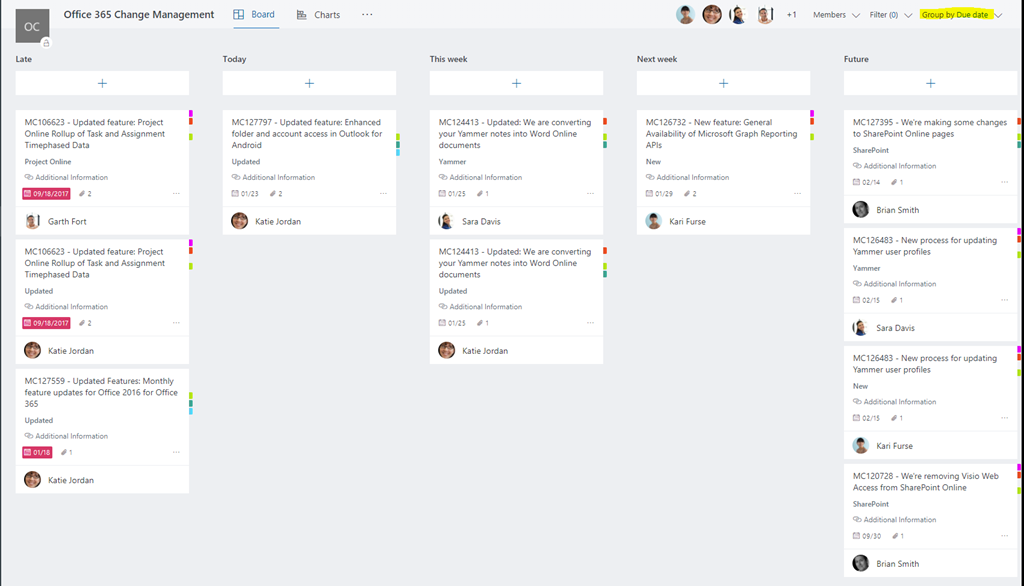
Microsoft Planner is one of the Office 365 Tools that I use pretty heavily. It’s a great lightweight project management tool that helps me organize and see my tasks in a nice Kanban style board. The concept is pretty simple, you create a “Plan” for the project you are working on and associate tasks with each plan.
The Problem
One of the things that Planner lacks, however, is an easy way to aggregate all of the tasks from multiple Plans. You can use the “My Tasks” view to see all of your tasks across all Plans which is great. But what if you want to see all of the active tasks out there for your entire team across all Plans? Currently there isn’t any way to see that out of the box within Planner.
The Idea
Before Planner came along, I used my old buddy the SharePoint Task List to handle this. With a SharePoint Task List, you can easily create views to see the data however you want. So, my thought was why don’t I use Microsoft Flow to Sync up my Planner Tasks to a SharePoint Task list? This will allow me to take the Planner Tasks across multiple Plans and add them to one master SharePoint Task list. Then I can create SharePoint views or even PowerBI Dashboards to see the aggregated data however I’d like!
Building the Solution
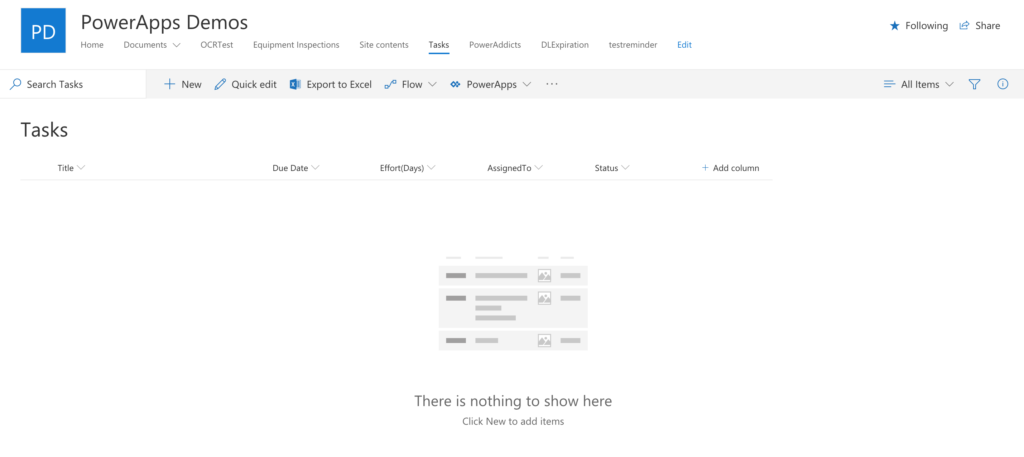
The first step to making this solution work is to create your SharePoint Task list that will hold the aggregated Planner Tasks. In your SharePoint site click Add an App and select the Tasks Template. You should end up with a nice blank Tasks list that looks something like this:
Planner Meet Flow
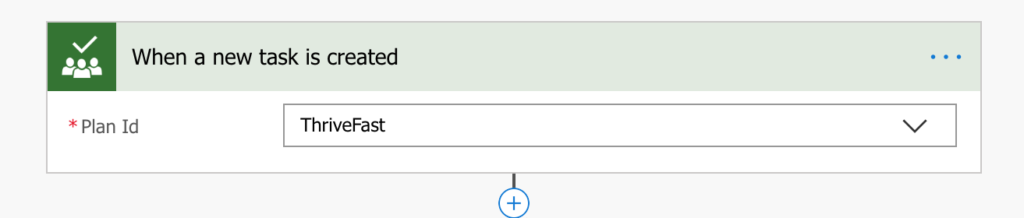
The glue that holds all of this together is our buddy Microsoft Flow. We can create a new Blank Flow with the Trigger of “Planner – When a New Task is Created”. This will trigger the flow each time a Task is added to the Plan you select.
Disclaimer: You will need to create a Flow like this for each of your Planner Plans that you want to move to SharePoint. This is because you can only associate to one Plan at a time. Obviously if you have hundreds of Plans then this method isn’t going to be very efficient.
For the “Planner – When a New Task is created” trigger, the only thing required is to select the Plan which you want to get the new tasks from. It will provide you with a drop down box of all the available Plans to choose from.
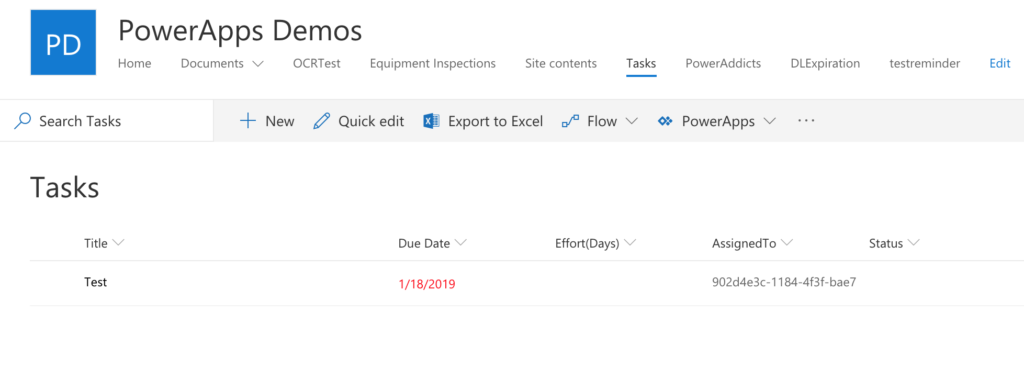
The next thing we need to do is insert an “Office 365 – Get User Profile V2” Action. The reason this step is necessary is because the value returned in the “Assigned To” Field from Microsoft Planner is a GUID, not an actual User Profile. So, if you were to skip this step and go straight to adding the task to SharePoint, your Assigned To Field in your SharePoint list will be an irrelevant GUID like you see in the screenshot below:
If we add the “Get User Profile” action and pass it the “Assignments AssignedTo User ID” object from our Trigger we can look up the Profile info for that user. Once we have that, we can use the Display Name property and pass that into our Assigned To field so that it is formatted correctly. Take a look at the configuration for the Get User Profile Action:
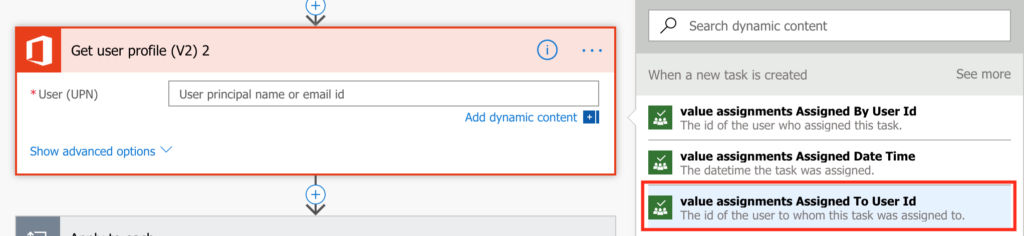
You’ll notice after you select the “value assignments Assigned To User ID” object for the User (UPN) input that it will automagically wrap that action inside an Apply to Each Function. Why is that you ask? This is because in Planner a Task can be assigned to Multiple people so we need to loop through that object and get each Assigned To value.
The Home Stretch
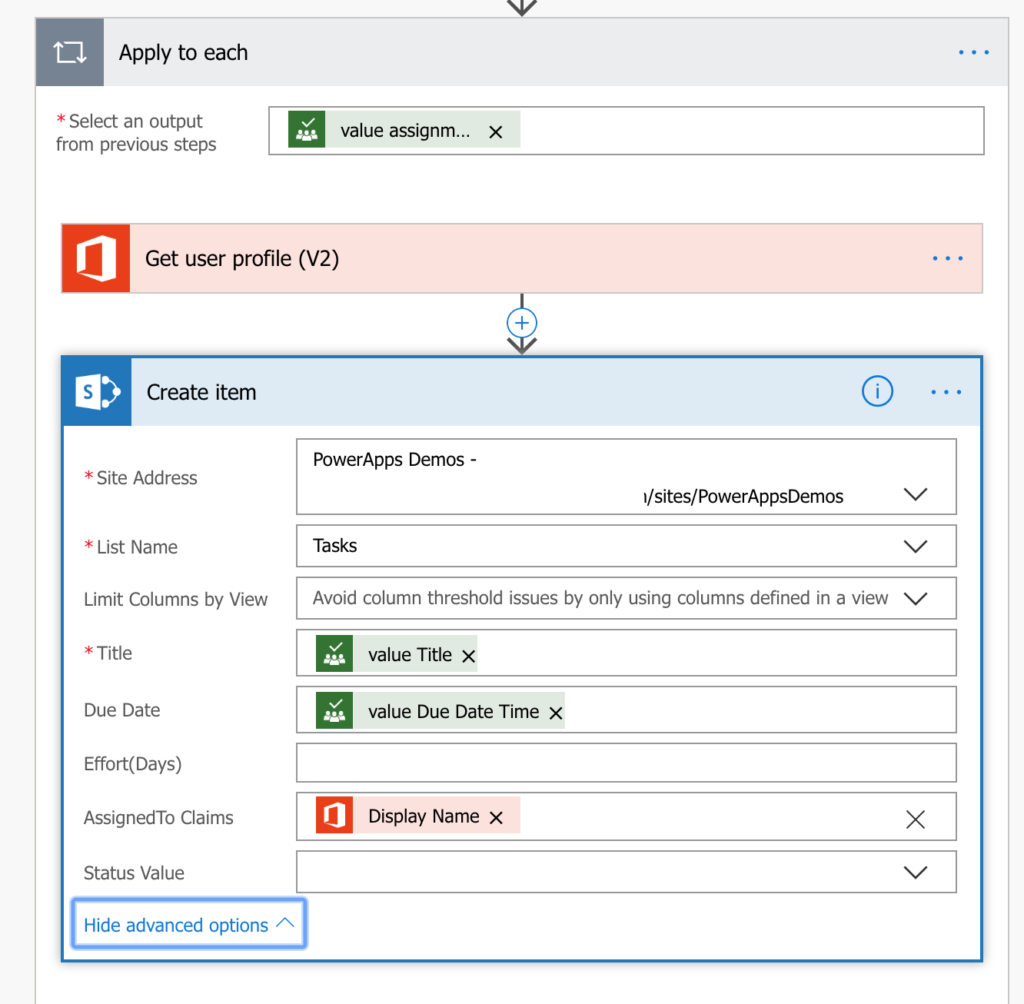
The final piece of the puzzle is to insert a “SharePoint – Create Item” Action below our Get User Profile Action. This action will add this Planner task to our SharePoint list. All we need to do is select the SharePoint URL and Task list and map the properties. Te Title, Due Date, etc will come from the Planner – When a Task is Created Action. The AssignedTo Claims value will be the Display Name object from the Get User Profile Action. See the screenshot below for reference:
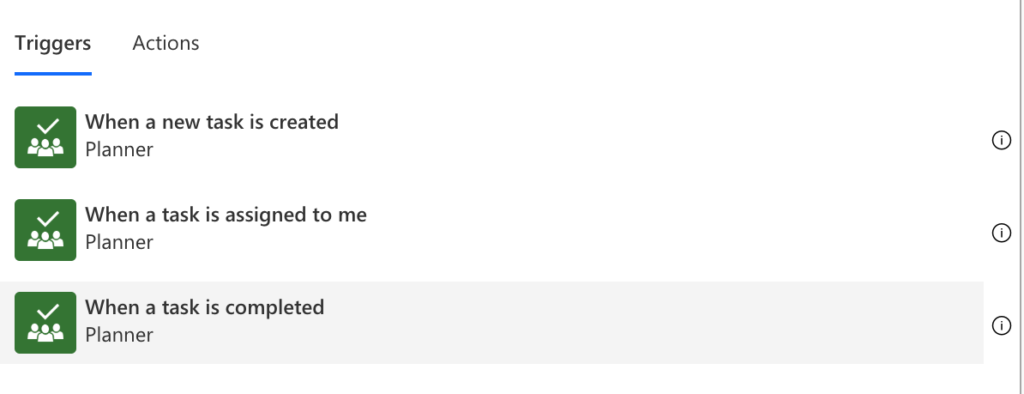
Just save your Flow and you are good to go. Every time a Task is added in Planner is will also be added to your SharePoint Task list. Now you may be wondering, this is great but how do I keep changes to the Planner Tasks in sync with the SharePoint Task? Well that one is a bit of a bummer. At the time of writing this, there is no Planner Trigger for “When a Task is Changed” which is what we would need to track changes. There is a Trigger for “When a Task is Complete” though which we can use to update our SharePoint Task List once the status is complete:
So I will admit that this solution is a little half baked right now since we can only keep our SharePoint list in sync on the initial addition of a Planner task and marking it complete but who knows, maybe additional triggers will come along to close the gap.
Hi I came across this video that shows how you can sync MS Planner to a sharepoint list. The only trouble is that there is no audio. If you are able to take a look and then see if you can figure out what they are doing and share that would be awesome. I am a newbie so without audio I really have no idea what the video is demonstrating. https://www.youtube.com/watch?v=MO9EyNKJVTw&t=57s
can you provide the step by steps on how you implement the trigger “Planner – When Task is Complete” to be able to remove/edit the item that was created within the task list?
Good post, few questions as we continue to adjust to Planner and Teams. You seem to have hit the exact problem I have, curious if you have a bigger solution.
First of all, a question for you on Tasks Vs. Plans Vs. Channels..
– If I start a “new project” – e.g. Develop E-Mail Lead Generation Program – This is obviously a series of tasks (get list, write assets, test landing page) and sub tasks (clean list, create necessary filters, etc.). Should I create a “channel” in teams? Should I create a NEW planner board for that Project (and then have the tasks under it (and the sub tasks under the check boxes?)
– What about General Quick To Dos? Should I put them into a channel to themselves?
My other question was the one you are addressing in your post. It’s not useful if it doesn’t update information as information changes within planner. I need to be able to be able to create an aggregated “export to excel” type view across all of my plans (for executive summary, etc.).
Curious if you ever figured out a way to do this (since yo9ur post is over a year old).
Hi there! Thank you for sharing this! One problem I ran into: I’ve created the tasks list, but then, on flow, when trying to create a new item, my tasks list is not available to select and then proceed to insert the other informations. Do you know if something changed on this tasks list? Can you please try to do this again to see if it still works in the way that you reported here? It would help me a lot. Thanks!
Bummer indeed. Almost 2 years later and the situation is unchanged–no trigger in Planner for On Changed.
Wow, this was written in 2019?! I’m still looking for a solution to this. Do you think this is still the best way? Also, once the task shows up in a Sharepoint Task list, is it possible to click on something in that row and have it open the associated task in Planner?