In one of my previous posts, I walked through how you could use SharePoint Column Formatting to launch a stand-alone PowerApp: https://aprildunnam.com/2019/03/open-powerapp-sharepoint-formatting/
I had several people ask “What happens if I click New in the SharePoint list, will it launch my standalone app?”. I didn’t address that in my previous post so I thought I would write a follow-up post about this.
First things first, there is no way to change the default behavior of the “New” button in your modern SharePoint lists. However, there are a couple work-arounds that we can do to “trick” it so that the New button will open up a standalone PowerApps. There are two options to do this which I will go over.
Option 1: Launching from SharePoint Customized App
One option is to customize your SharePoint list form with PowerApps. You can then have that customized list form launch your standalone PowerApp. The main downside of this approach is the fact that you will now have another PowerApp out there to keep track of. However, this is the only way I have found which lets you utilize the default New button in your lists to open a standalone PowerApp.
The first step to make this work is to go to your SharePoint list, select the PowerApps button and click “Customize Forms”.
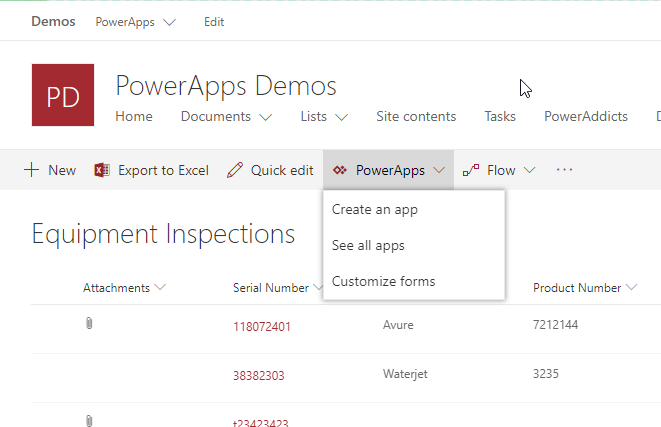
In your SharePoint customized form, you will want to remove the data in the form control and the buttons so you are left with a blank app.
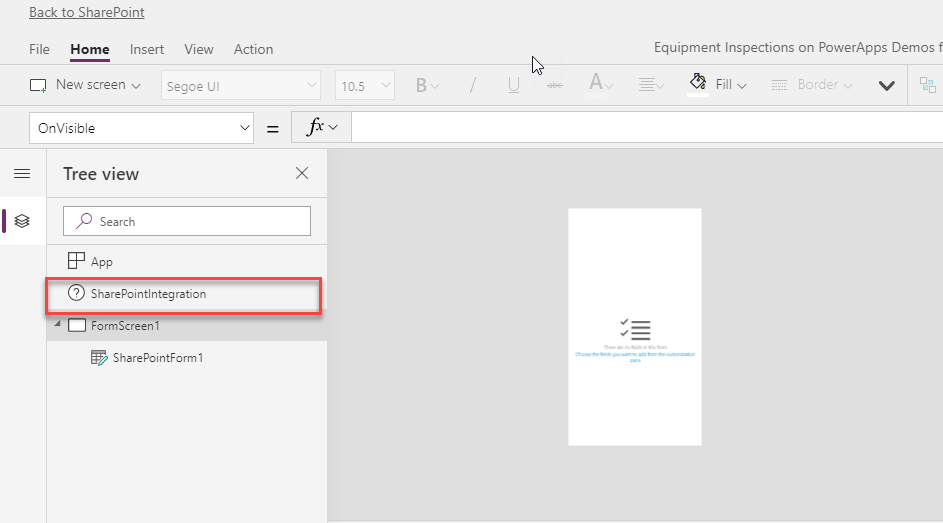
Next, click on the SharePointIntegration tab in your screens window. If you look at the Properties panel you’ll notice we have several options: OnEdit, OnNew, OnView, etc.
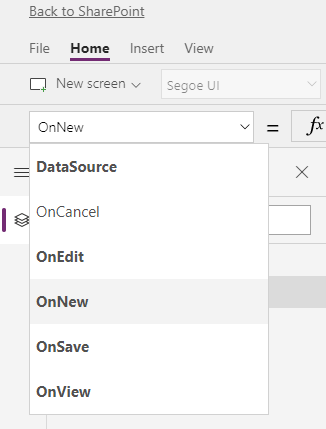
You’ll need to click on each of those properties and put in the following function:
Launch(“https://web.powerapps.com/apps/insert your PowerApp URL here”);RequestHide()

This function will launch your standalone PowerApp and hide the default form. Click Publish to SharePoint to apply your change. Now when you click New in your modern SharePoint list, it will open up your standalone PowerApp in a new tab!
Option 2: Building a custom Page
The second option is to bypass your default SharePoint list and create a custom page. You can create a new modern SharePoint page and add your SharePoint list to that page. Make sure to adjust the web part properties to hide the toolbar of your list. You can then insert your own custom New button which launches your standalone PowerApp.
Dear April,
Thanks for your creation solution!
But I just try it, work perfectly in web browser, but not work it Mobile App version, did you have any idea?
Thanks,
Hello April,
Thank you so much for this amazing guide. I’m totally impressed with the detailed step by step guide shared by you and I really promote these.
As you mentioned SharePoint column formatting, this is what I was looking for a while.
So last but not least, I have bookmarked this guide so that I can share it when I’ll get some time.
Thanks
How can this work when the user clicks edit with an item selected on the list? Right now it just brings up the PowerApp that isn’t filled out.
How does this work for the edit button? Right now it seems to just open the blank PowerApp and not the selected item in the list.